

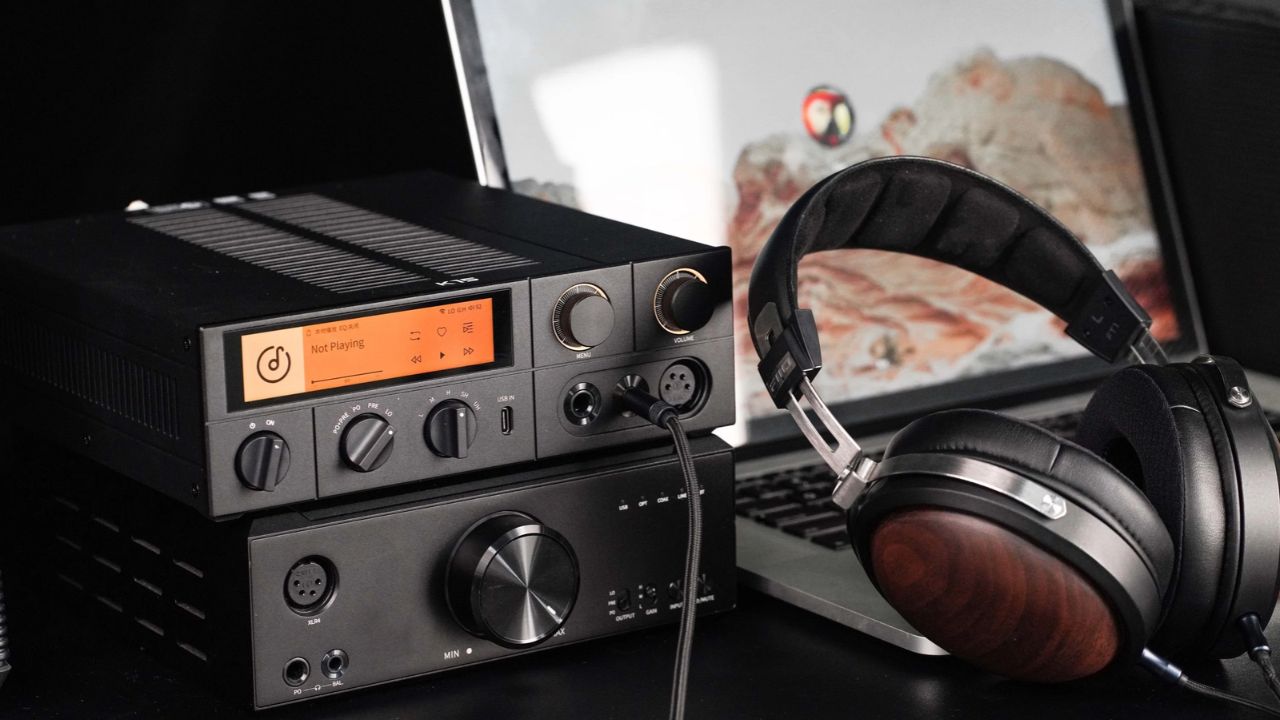
A good audio system can transform how you enjoy music, movies, games, and podcasts. However, getting the best results depends on more than buying expensive headphones or speakers. An effective amp DAC setup helps your devices convert digital audio into an analog signal and deliver enough power for comfortable, clear listening. Understanding how these components work together makes it easier to choose compatible equipment, connect everything correctly, and avoid common sound problems.
Whether you are building a desktop audio system or upgrading your gaming headphones, the setup process can be straightforward. You need to understand a few basic connections, select the right output settings, and adjust volume and gain carefully. Some users need separate DAC and amplifier units, while others can achieve their goals with a single combined device. This guide explains the essential components, setup methods, compatibility considerations, and practical adjustments that help you build a reliable audio system.
What Is an Amp DAC Setup?
A DAC, or digital-to-analog converter, transforms digital audio data into an analog signal that audio equipment can reproduce. Computers, smartphones, televisions, and many other devices already contain DACs. An external DAC provides another conversion option and may offer different connections, controls, or performance characteristics.
An amplifier increases the strength of an audio signal to drive headphones or speakers. A headphone amplifier supplies the voltage and current needed for a particular pair of headphones, while a speaker amplifier powers compatible passive speakers. An amp DAC setup combines these functions in one device or uses separate components. The right arrangement depends on your equipment, listening preferences, and available space.
Essential Components for Your Audio Setup
Before connecting anything, identify the equipment you already own. A typical desktop setup includes a computer, a DAC, a headphone amplifier, compatible headphones, and the necessary cables. If your DAC already includes a headphone amplifier, you may not need a separate amplification unit.
For a separate setup, check that the DAC provides an analog line output and that the amplifier accepts a matching input. RCA stereo cables are common for this connection, while some equipment supports balanced XLR or other compatible connections. Schiit Audio explains these options in its basic connections guide. Always check the manuals because connector appearance alone does not guarantee compatibility.
How to Connect a DAC and Amplifier
The standard signal path for a separate desktop system follows this sequence:
Computer or other digital source → DAC → headphone amplifier → headphones
Follow these steps to establish the connection safely.
- Connect your source to the DAC. Use a supported USB, optical, or coaxial connection. Select the correct input on the DAC if it has an input selector.
- Connect the DAC to the amplifier. Run a suitable cable from the DAC’s analog line output to the amplifier’s corresponding line input.
- Connect your headphones. Plug them into the headphone output on the amplifier, not an unrelated line-level connector.
- Power on the equipment. Follow the manufacturer’s instructions for the correct startup sequence.
- Select the correct input. Confirm that the amplifier and DAC use the inputs connected to your source.
- Start with low volume. Play familiar audio and increase the level gradually until it reaches a comfortable listening volume.
If your device combines a DAC and headphone amplifier, the process is simpler. Connect it to the source, select it as the audio output, and plug your headphones into its headphone jack.
Setting Up an Amp DAC on Windows and Mac
A USB DAC often works as an external audio device when connected to a compatible computer. Some models operate without extra software, while others require manufacturer-specific drivers or applications. Check the product manual before installing software from third-party websites.
On Windows, open Settings → System → Sound and choose your DAC or DAC/amp as the output device. On macOS, open System Settings → Sound → Output and select the connected device. Menu names may vary by operating system version. If the device does not appear, check the USB cable, power supply, connection port, and any required driver installation.
For music applications that offer their own audio output controls, confirm that the application uses the intended device. You can then test a familiar track and verify that the left and right channels work correctly. Avoid changing multiple settings at once, since a simple, controlled test makes troubleshooting easier.
Read A Complete Guide to the 2026 US Elections and Midterms
Choosing the Right Audio Settings
Audio settings can influence compatibility and playback behavior, but higher numbers do not automatically produce an audible improvement. Sample rate describes how frequently digital audio samples represent a signal, while bit depth describes the precision used to represent sample values in formats that use fixed-point PCM audio.
For ordinary music listening, 44.1 kHz or 48 kHz playback is a sensible starting point, depending on the source and application. Higher rates may be useful for particular workflows, but they are not necessary for every listener. Choose a format supported by your DAC and source software, and avoid unnecessary processing that changes the signal without a clear purpose.
Exclusive-mode playback, system audio enhancements, and equalizer settings can also affect how sound reaches your DAC. Their behavior varies by application and operating system. If you encounter distortion or unusual playback behavior, return to a basic supported format and disable optional effects temporarily. This helps determine whether the problem comes from the device, software, or audio processing.
Understanding Gain, Volume, and Headphone Compatibility
Gain determines how much an amplifier increases the incoming signal. It does not automatically improve sound quality. High gain can help when a headphone needs more output, but it may also make the volume control more sensitive and increase the chance of unexpectedly loud playback.
Begin with low gain and a low volume setting. Raise the level gradually, and only consider higher gain if the low setting cannot provide sufficient volume. Headphone impedance and sensitivity both matter when evaluating whether an amplifier can drive a particular model. Impedance alone does not tell the whole story, so compare the headphone specifications with the amplifier’s published output ratings.
Compatibility also matters when choosing balanced connections. RCA, XLR, 3.5 mm, 4.4 mm, and 6.35 mm connectors serve different purposes depending on the equipment. Do not assume that a cable or adapter makes incompatible outputs safe to connect. Check the documentation for both devices before using unfamiliar connections.
Improving Sound Quality Without Overspending
An external DAC or amplifier can be useful when your existing equipment has an audible noise problem, insufficient output, limited connectivity, or other specific limitations. However, replacing a working device does not guarantee a dramatic improvement. Your headphones, speakers, recording quality, room acoustics, and listening preferences all influence the final result.
Start by identifying the problem you want to solve. If your headphones sound too quiet, check the volume settings and amplifier capability. If you hear a hum, investigate cables, power connections, and nearby electrical equipment. If the sound seems harsh, review equalizer settings and compare different recordings before buying new hardware.
Good cable management can also make a desktop system easier to maintain. Use cables of appropriate length, keep connections secure, and avoid unnecessary adapters. You generally do not need premium cables to achieve good results when ordinary, properly made cables meet the equipment’s requirements.
Amp DAC Setup for Gaming and Music
Gamers may use a DAC and amplifier to connect headphones to a computer or another compatible source. A suitable setup can provide enough headphone power, convenient volume control, and the connections needed for a particular gaming system. However, features such as microphone input, chat mixing, virtual surround sound, and console compatibility vary by device.
Before purchasing equipment for gaming, check the supported USB audio standards and the console’s connection requirements. Some consoles and controllers handle headset microphones differently from headphone audio. A DAC with a headphone output may not provide a microphone input, so you might need a separate connection for voice chat.
For music, prioritize a clean signal path and compatibility with your headphones. Gaming features can be helpful, but they are not essential for listening to albums or podcasts. Choose a device based on your main use rather than paying for functions you will rarely need.
Common Amp DAC Setup Problems and Solutions
Even a correctly connected audio system can occasionally fail to produce sound. Fortunately, most basic problems have straightforward causes.
- No sound: Confirm that the DAC is powered on, the correct input is selected, and the computer uses the intended output device.
- Very low volume: Check mute settings, application volume, amplifier volume, and gain. Increase the level gradually.
- Distorted audio: Lower the volume, disable optional effects, and test another recording or application.
- Humming or buzzing: Reseat cables, test another USB port, and move equipment away from possible sources of electrical interference.
- One channel is silent: Check the left and right connections and test another cable or pair of headphones if available.
- The DAC is not detected: Try a compatible data-capable USB cable, another port, or the manufacturer’s recommended driver.
Schiit Audio’s troubleshooting guides provide additional suggestions for USB connection and system problems. If basic checks do not solve the issue, consult the manuals for your specific devices before trying unusual adapters or connection methods.
Conclusion
An amp DAC setup can provide a practical way to improve an audio system’s connectivity, headphone drive, and listening convenience. The key is understanding the role of each component and matching its connections and specifications to your equipment. A simple combined DAC/amp may be sufficient for many users, while separate components offer flexibility for more specialized systems.
Start with compatible cables, correct computer settings, and low volume. Then check gain, audio formats, and headphone requirements before considering additional hardware. Focus on solving real problems rather than chasing specifications alone. With careful setup and sensible adjustments, you can build a dependable audio system for music, gaming, and everyday listening.
Frequently Asked Questions
What is the difference between a DAC and an amplifier?
A DAC converts digital audio into an analog signal. An amplifier provides the output needed to drive headphones or speakers. Some products combine both functions in one unit.
Do I need a separate DAC and amplifier?
Not necessarily. Many computers, smartphones, and other devices already include audio conversion and amplification. An external DAC or amplifier is useful when you need better connectivity, additional output capability, or a solution to a specific audio problem.
How do I connect a DAC to a headphone amplifier?
Connect the DAC’s analog line output to a compatible input on the amplifier using the appropriate cable. Then connect your headphones to the amplifier’s headphone output and start with low volume.
What sample rate should I use for my amp DAC setup?
For everyday music playback, 44.1 kHz or 48 kHz is a sensible starting point. Choose a format supported by your source, application, and DAC. Higher sample rates do not automatically mean better audible quality.
Can an amp DAC improve gaming audio?
It can help when your existing output lacks sufficient power or suitable connections. However, microphone support, chat mixing, surround processing, and console compatibility depend on the specific device.
Explore More CONTENTORY